Getting around the desktop
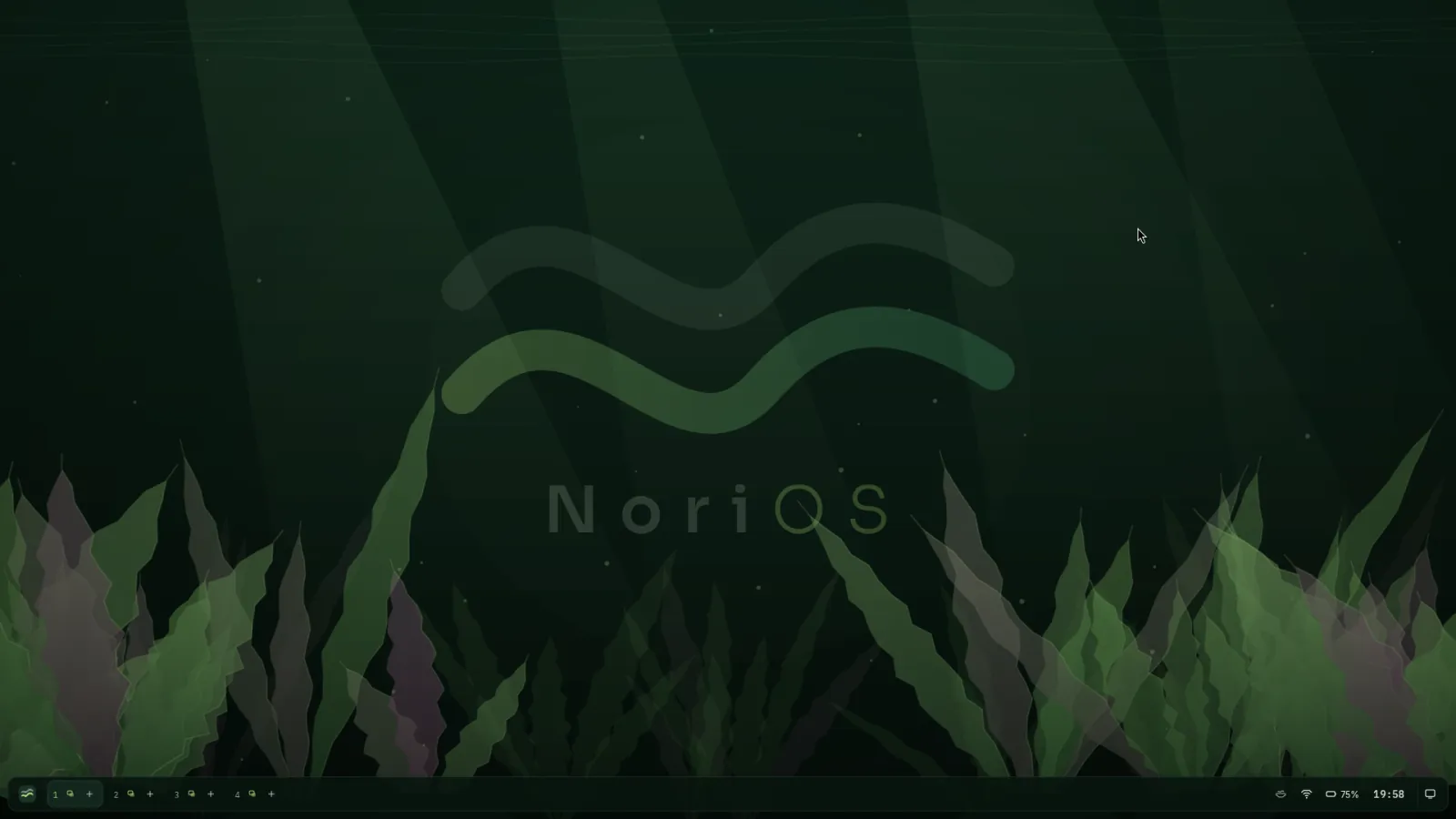
The dock
The bar along the bottom is the dock. From left to right:
- The wave mark opens the launcher.
- Pools are your workspaces, numbered. Each one holds its own windows, shown with their icons and titles. Click a window to bring it forward, click it again to minimise it.
- Status: network, sound, battery and the time. Click one for its panel: the clock opens the calendar and your notifications.
- The last button shows the desktop; click it again to bring the windows back.
The launcher
Press Super (the Windows key) or click the wave mark, and start typing. Apps and settings appear in one list, Windows and Linux programs together. Use the arrow keys and Enter, or click. Beside the list: the time, Wi-Fi, brightness, your account, and the buttons to lock, log out, sleep, restart and power off.
Windows
The controls to minimise, maximise and close sit in a small capsule at the right of each title bar. Drag a window to the left or right edge to fill that half of the screen, or to the top to maximise it.
Each pool floats its windows or tiles them. Press Super+T to switch the current pool: in tiling mode, windows share the screen side by side and make room for each new one.
Keyboard shortcuts
| Keys | What they do |
|---|---|
| Super | Open or close the launcher |
| Super+H | Every key binding, searchable |
| Super+Enter | A terminal |
| Super+Q | Close the window |
| Super+F | Fullscreen |
| Super+T | Float or tile this pool |
| Super+Shift+F | Float this one window |
| Super+arrows | Move the focus between windows |
| Super+Ctrl+arrows | Move the window |
| Super+Shift+arrows | Resize the window |
| Super+1, Super+2, … | Go to that pool |
| Super+Ctrl+1, Super+Ctrl+2, … | Send the window to that pool |
| Super+D | Show the desktop |
| Super+Shift+P | Keep this window on top, small (picture-in-picture) |
| Super+Shift+S | Screenshot |
| Super+Shift+Escape | Lock the screen |
The shortcuts are kept in ~/.config/nori/desktop/desktop.conf, where you can change them.
Make it yours
Settings has everything in one place: the look (dark or light, the accent colour, animations, the wallpaper, the dock along the bottom or as a rail on the left), windows, keyboard layouts, sound, network, power, displays, default apps and users.